You're on a call. Your client, your student, or your teammate needs to see what's on your screen — a slide, a spreadsheet, a design mockup, or a line of code. You say "let me share my screen," and then you remember: last time, everyone had to install something. A desktop app. A browser extension. A companion tool. Some of them couldn't join at all.
That's a broken workflow. Screen sharing should not require anyone to install anything.
In this guide, we'll show you exactly how to share your screen online with no downloads, no plugins, and no sign-ups — using nothing but the browser you already have open. We'll also explain why this matters, what to look for in a tool, and how to avoid the most common pitfalls.
Why Download-Free Screen Sharing Matters
Most traditional video conferencing platforms ask both hosts and guests to install desktop software. On the surface, that seems reasonable — the software exists to improve performance and add features. In practice, it creates friction that kills meetings before they start.
Here's what actually happens when a tool requires a download:
Guests hesitate. Not everyone is comfortable installing new software on their laptop or phone. Some are on managed corporate devices where downloads are blocked entirely.
Setup eats time. The average install-plus-setup takes 3–8 minutes. Multiply that by every new guest, every week, and you've lost hours of productive meeting time.
Support tickets spike. "I can't find the download button" or "my browser says the file is unsafe" become the most common support requests.
Enterprise IT blocks it. Many corporate firewalls and MDM policies prevent employees from installing third-party apps. Your guest simply can't join.
Mobile users are stranded. Most desktop apps have no mobile equivalent, or the mobile version is so limited that it's unusable.
Download-free screen sharing solves all of these problems at once. The host clicks a button. The guest opens a link. Everyone sees the screen. That's it.
This is why platforms like Hehllo were built from the ground up as browser-based tools. The browser handles video, audio, screen capture, and file transfer — no installation required. Modern WebRTC technology makes it possible to deliver HD-quality screen sharing without native software, and the experience is nearly indistinguishable from a desktop app.
How Browser-Based Screen Sharing Actually Works
If you've ever wondered how a browser can share your screen without software, here's the short version.
Every modern browser (Chrome, Edge, Firefox, Safari) includes an API called getDisplayMedia. When you click "Share Screen" on a website, the browser itself handles the capture and transmission of your screen's pixels. It doesn't need a plugin or extension because the capability is built into the browser.
The platform then streams that captured video to the other participants using WebRTC — a real-time communication protocol that's also used for video calls, live streaming, and even online gaming. WebRTC is peer-to-peer by default, meaning data flows directly between participants rather than through a central server.
The result:
-
Lower latency than server-routed alternatives
-
Better privacy since the platform doesn't see your screen
-
No installation overhead — it's all native browser functionality
-
Cross-platform consistency — works on Windows, Mac, Linux, ChromeOS, Android, and iOS without changes
The only requirement is a modern browser. If you can load a website, you can share your screen.
How to Share Your Screen Without Downloads (Step-by-Step)
Here's the exact process using Hehllo, though most browser-based tools follow a similar flow.
Step 1: Start or Join a Meeting
Open the meeting link in your browser. If you're the host, click Start a Meeting from the homepage or sign in if you have an account. Guests don't need an account at all — they simply click the link and enter their name.
There's no app to download, no registration wall, and no waiting room.
Step 2: Click "Share Screen"
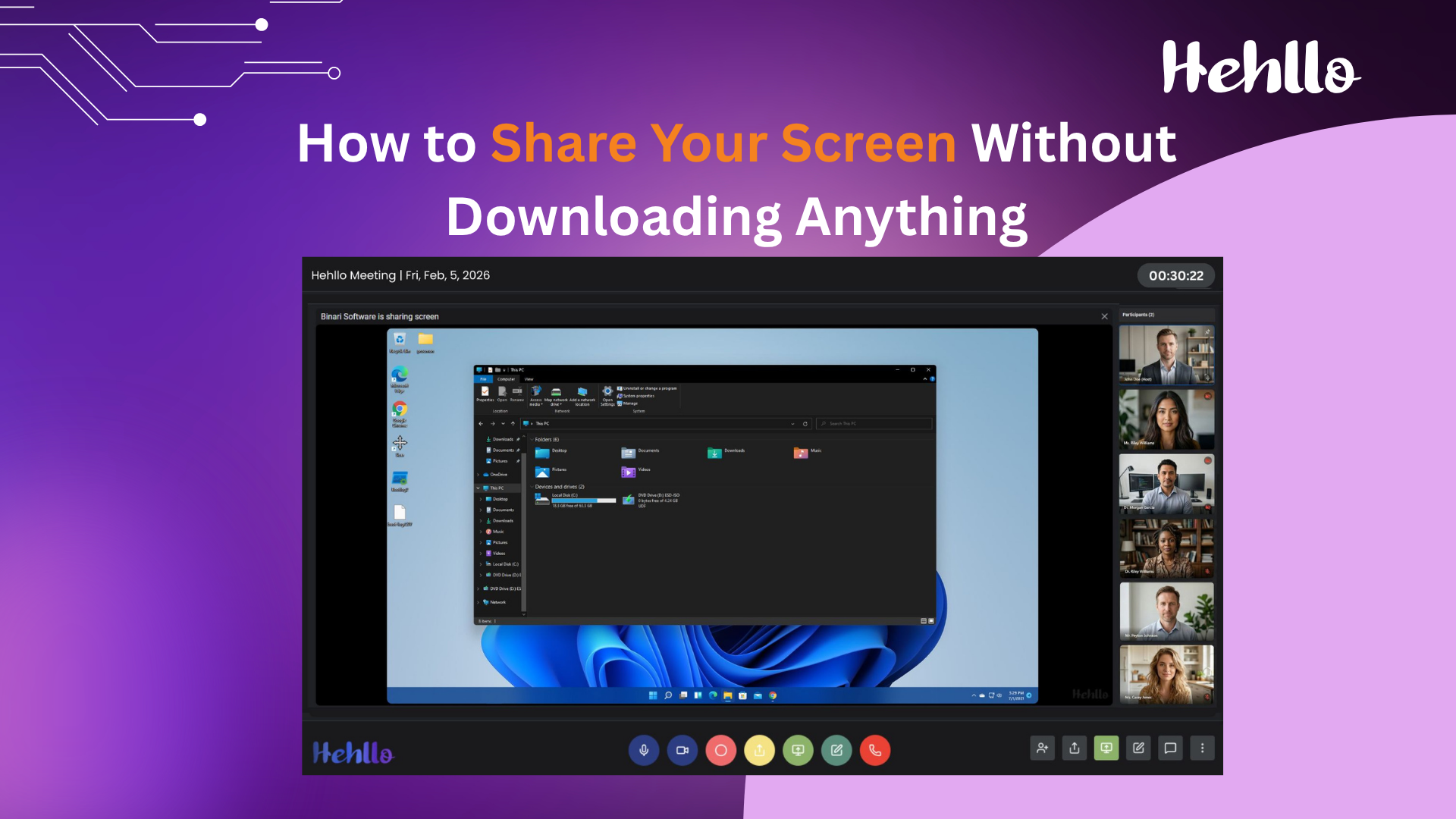
Inside the meeting dashboard, find the Share Screen button (usually represented by a monitor icon). Click it once. That's the whole setup.
Step 3: Choose What to Share
Your browser will show a picker dialog with three options:
-
Entire Screen — shows everything on your desktop, including notifications and other apps
-
Application Window — shows one specific app (like PowerPoint, Figma, or VS Code)
-
Browser Tab — shows only one tab, hiding the rest of your desktop
For most meetings, Application Window or Browser Tab is the safest choice — it keeps your private notifications, personal tabs, and other apps hidden from view.
Step 4: Start Presenting
Click Share in the picker dialog. Your screen is now visible to every participant in the meeting, in real time.
You can continue to use the meeting controls while sharing: chat with participants, open the whiteboard, or share files — all without interrupting the presentation.
Step 5: Stop Sharing
Click Stop Sharing when you're done. The meeting continues normally, and other participants can now share their own screens if needed.
That's the entire workflow. No install, no setup wizard, no configuration menu.
What to Look For in a Download-Free Screen Sharing Tool
Not every "browser-based" tool is truly browser-based. Some still ask you to install a lightweight extension or run a companion app in the background. If download-free is important to you, verify these five things:
1. No Extensions Required
Some tools work in the browser but require you to install an extension for screen sharing specifically. That defeats the purpose. A proper download-free tool works with the browser's native screen capture — no add-ons.
2. No Guest Sign-Up
If guests have to create an account to join, you've just replaced one friction point with another. Look for tools that let guests join with just a name and a link.
3. Cross-Platform Support
The tool should work identically on Windows, Mac, Linux, Android, iOS, and ChromeOS. If a guest is on mobile, they should still be able to view your shared screen, even if they can't share their own.
4. Encryption
Screen sharing sends your visual data across the internet. Look for tools that use peer-to-peer encryption (like WebRTC's built-in DTLS-SRTP). This ensures your screen isn't routed through a central server where it could be intercepted.
5. Additional Collaboration Tools
Sharing your screen is usually not enough on its own. You also need chat, file sharing, a whiteboard for annotation, and the ability to record the session. Tools like Hehllo's screen sharing bundle all of this into the same window so you never have to switch tabs or apps mid-meeting.
Common Problems (and How to Fix Them)
Even with modern browsers, screen sharing occasionally runs into issues. Here are the most common ones and how to solve them quickly.
"My Browser Won't Let Me Share"
Some browsers restrict screen sharing unless the connection is secure (HTTPS). If you're sharing from a non-HTTPS page, the picker dialog won't appear. Always use the https:// version of any site you're sharing from.
"I Can Share My Screen, But No One Can See It"
This is usually a bandwidth issue. Screen sharing is data-intensive, especially at high resolutions. Try these:
-
Lower your screen resolution before sharing (1080p is usually fine; 4K can strain connections)
-
Close other bandwidth-heavy apps like streaming video or large downloads
-
Share a specific window or tab instead of the entire screen — it uses less bandwidth
"The Shared Screen Is Blurry or Laggy"
This is typically due to insufficient upload bandwidth on the host's side. Check your internet connection speed. If your upload is below 2 Mbps, screen sharing quality will suffer. You can also try sharing at a lower frame rate if the tool supports it.
"I Can't See the Share Button"
If you're a guest and don't see the share button, the host may have restricted sharing to certain participants, or you may be on a mobile device where screen sharing isn't supported. Check with the host — most platforms let you grant sharing permissions to anyone in the meeting.
"The Browser Asks for Permission Every Time"
This is a security feature, not a bug. Browsers require explicit permission each time you start a new screen share to prevent malicious sites from capturing your screen without your knowledge. There's no safe way to disable this permanently.
When Download-Free Screen Sharing Saves the Day
Here are five real-world scenarios where browser-based screen sharing beats desktop apps.
1. Client Meetings for Freelancers
You're pitching a new client. They're on a managed laptop with strict IT policies. Asking them to install an app risks the deal. A meeting link removes every friction point — they click, they see, they're impressed.
2. Online Teaching and Tutoring
Students of all ages join from all kinds of devices — school-issued Chromebooks, personal iPads, family laptops. None of them should have to install software just to see a whiteboard or a slide deck. A browser link works for everyone. Pair it with a shared online whiteboard and you have a complete virtual classroom.
3. Software Demos and Sales Calls
When you're demoing a product to a prospect, every second counts. The last thing you want is a five-minute detour while they install your app. A direct link means the demo starts in under 30 seconds.
4. Healthcare and Telehealth Consultations
Patients often aren't tech-savvy. Elderly patients in particular struggle with app downloads. Browser-based screen sharing lets a doctor walk a patient through test results or medication instructions with a single click.
5. Family and Personal Use
Not every screen-sharing scenario is business. Grandparents want to see photos, friends want to watch videos together, siblings want to help each other troubleshoot a phone issue. No one wants to install an app for that.
How Hehllo Handles Screen Sharing
Hehllo was built from day one as a browser-based video meeting platform. That means screen sharing is a first-class feature — not an afterthought bolted onto a desktop app.
Here's what makes it different:
-
One-click sharing: No downloads, no extensions, no plugins
-
Granular control: Share your full screen, a single window, or just one tab
-
Built-in whiteboard: Annotate while you present, without switching apps
-
Patented file sharing: Send documents, videos, and images mid-call
-
Session recording: Capture the entire meeting for later review
-
Up to 100 participants: Everyone sees the same view, in real time
-
Unlimited meeting duration: No 40-minute timer, no forced upgrades
Because it's all in one window, you never have to juggle tabs. You present, you annotate, you share files, and you chat — all from the same interface. That's the "single-window philosophy" that separates Hehllo from tools built as desktop apps first.
You can start a free meeting in seconds — no download required.
Frequently Asked Questions
Do I need a Google or Microsoft account to share my screen?
No. Browser-based tools like Hehllo don't require any account at all. You can share your screen from a link as a guest.
Can I share my screen on mobile?
Viewing a shared screen works on all mobile browsers. Sharing from a mobile device is supported on Android and iOS in most modern browsers, though it may require granting additional permissions.
Is download-free screen sharing secure?
Yes — when done over HTTPS with WebRTC encryption. The data flows directly between participants and isn't stored on any server. It's actually more private than tools that route everything through a central cloud.
What's the maximum screen resolution I can share?
Modern browsers support up to 4K (3840×2160), but the actual resolution delivered to participants depends on your upload bandwidth and their download bandwidth. For most meetings, 1080p is more than sufficient.
Why do some tools still require a download?
Legacy platforms were built before browsers had native screen-sharing APIs. Rather than rebuild, many chose to keep their desktop apps. Modern tools like Hehllo never needed one.
Can I share my screen and use the whiteboard at the same time?
Yes, in Hehllo and other modern platforms. This is particularly useful for walking through documents, explaining designs, or teaching concepts where visual annotation adds clarity.
The Bottom Line
Screen sharing should not require anyone to install software. Modern browsers already have everything needed to capture, transmit, and display a shared screen — securely and in real time.
If you're still asking guests to download an app, you're adding friction to every single meeting. Switch to a browser-based tool and watch what happens: meetings start faster, guests join more often, and the conversation stays focused on the work instead of the tech.
Try Hehllo's free screen sharing — no download, no sign-up, no time limits. Just click a link and share.